
Using ManagedPay on payit901
ManagedPay is available to payit901 account holders for Shelby County, Arlington, Millington, and Lakeland bills only.
- What is ManagedPay?
- ManagedPay Eligibility
- Important Notes
- How do I enroll in ManagedPay?
- What if my ManagedPay payment fails?
What is ManagedPay and how does it work?
This convenient feature allows you to divide your bill’s balance into affordable automatic monthly payments:
- Current Bill - Can be paid in up to 8 monthly payments. The minimum amount for each monthly payment is $30.
- Delinquent Bill - Can be paid in up to 12 monthly payments. The minimum amount for each monthly payment is $30.
Depending on the payments you make, it is possible you may still have a balance when the duration is complete, due to the interest accrued over that time. After the ManagedPay payments conclude, you can re-enroll in ManagedPay with a maximum duration of 12 months.
ManagedPay Eligibility
- The property must not be in tax sale.
- You must have a payit901 account and it is a Shelby County, Arlington, Millington, or Lakeland bill.
- Only one ManagedPay account can be set up per bill.
- The bill must be over $30.
Important Notes
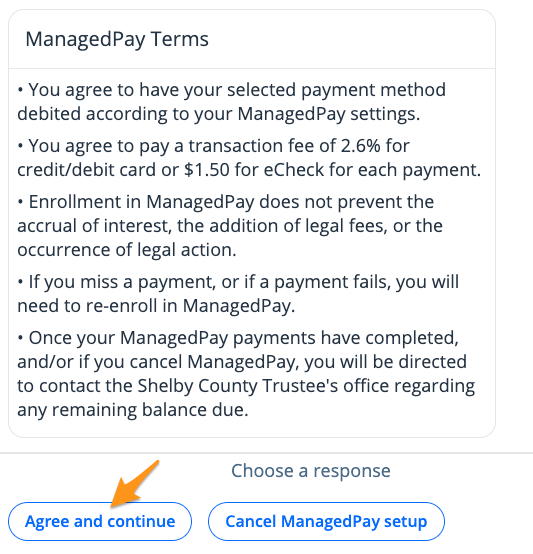
- Enrollment in ManagedPay does not prevent the accrual of interest, the addition of legal fees, or the occurrence of legal action.
- ManagedPay is only available for payit901 users with a profile. It is not available when using payit901 as a guest.
- If you miss a payment, or if a payment fails, you will need to re-enroll in ManagedPay.
- Upon enrolling in ManagedPay, the monthly payments will be made automatically.
How do I enroll in ManagedPay?
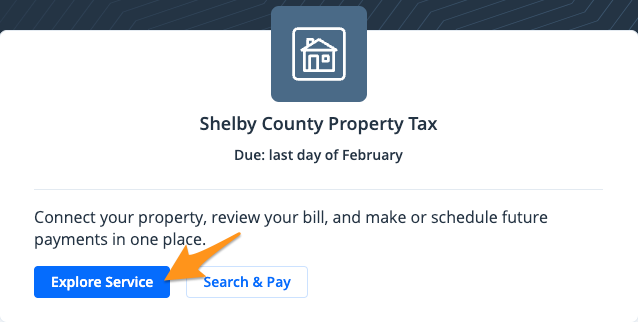
- After locating your bill on payit901 (see Add a Shelby County property account to your profile), click Explore Service
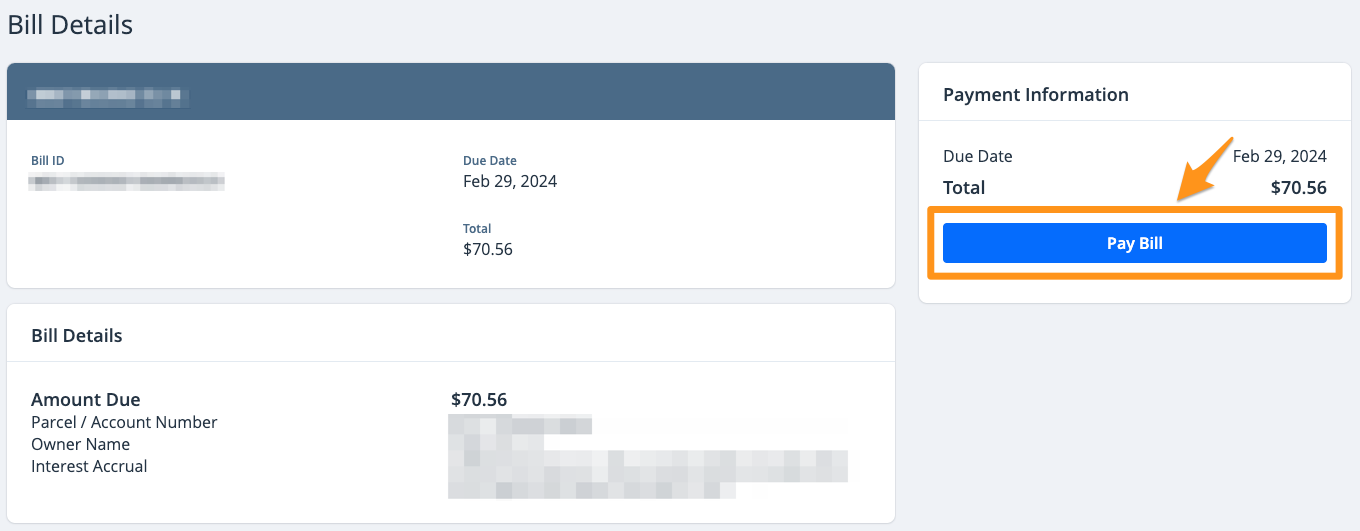
- Click on the bill you wish to enroll and then click Pay Bill
- Select Set up ManagedPay. Then, If you have multiple available bills, select the bill(s) you wish to enroll and click Submit.

- Select Set up ManagedPay. Read the ManagedPay Terms and then select Agree and continue.
- The next step is dependent on the status of your bill:
- If your bill is current, you will be prompted to select a Plan Duration. Select the plan of your choice then click Submit. Enter your monthly plan start date, and payment method, and then click Submit again.
Note: For current, non-delinquent bills, you can select the start date and duration of ManagedPay, with a max duration of 8 months.
- If your bill is past due, you will be prompted to set up your ManagedPay Settings. Enter your monthly plan start date, plan duration, monthly payment amount, and payment method, and then click Submit.
Note: For delinquent bills, you can select the start date, the amount you would like to pay each month, and the duration of the ManagedPay, with a max duration of 12 months.
- Review your plan and everything looks correct select Complete enrollment.
Once you have submitted and confirmed the ManagedPay settings in the conversation, you will receive an email confirmation that outlines when your payments will be made, the amount, and the payment method.
What if my ManagedPay payment fails?
If a transaction associated with your ManagedPay fails, your bill will automatically be removed from the ManagedPay program and any future payments will be canceled. You will need to re-enroll in the program to continue taking advantage of automatic monthly payments.